
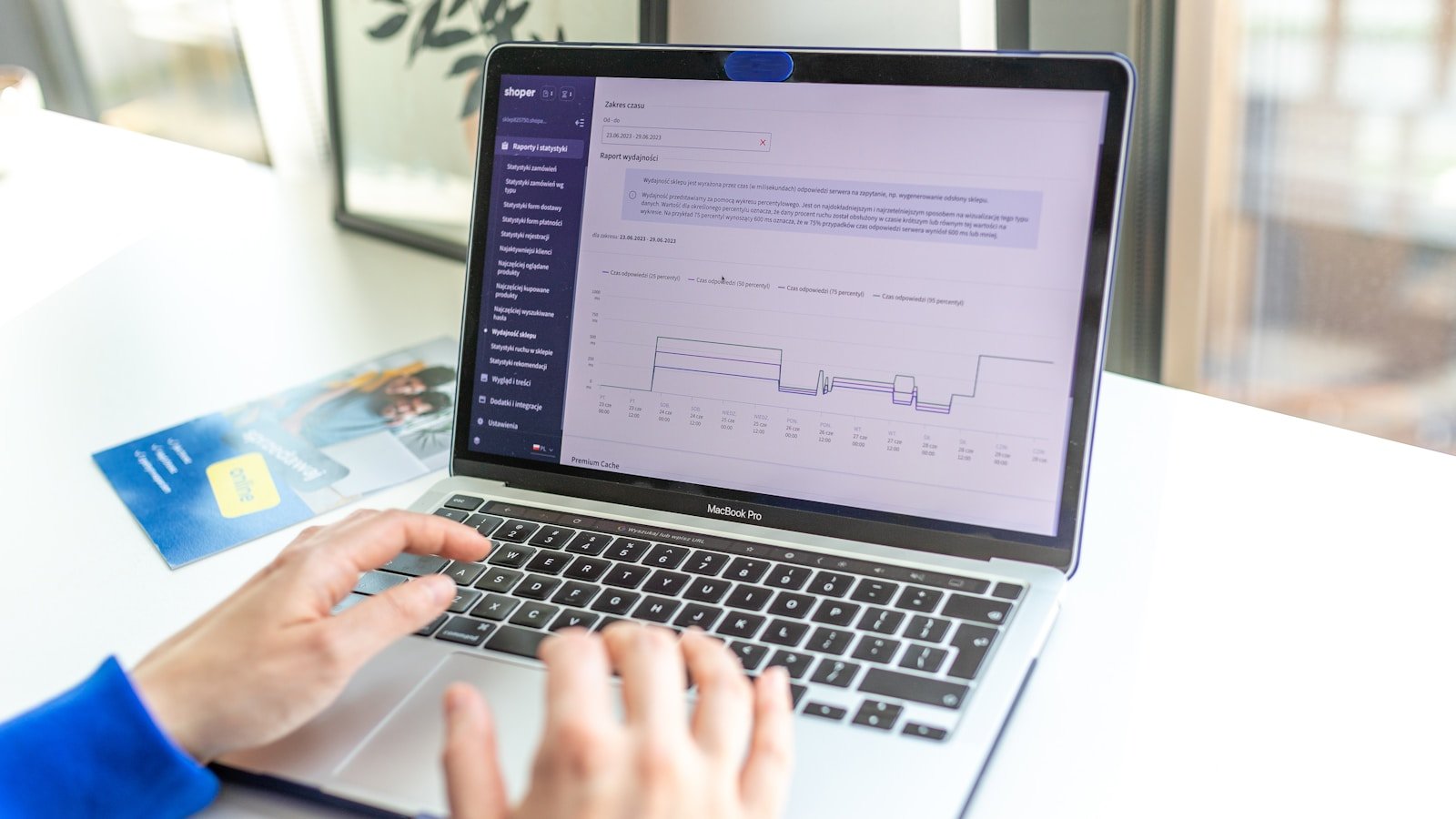
A single unoptimized product image can add 5 MB to a Shopify product page. Multiply that by 50 SKUs and you have a store that Google treats like a slow-loading ghost town. Merchants chase keyword rankings while their images silently tank Core Web Vitals and scroll past the fold without ever loading.
An image speed scanner built for Shopify stops that leak at the source. Instead of wiring up three different speed tools and a compression plugin, you scan your entire catalog inside one workspace, fix the heavy files, rewrite alt text that actually ranks, and deploy optimized images without leaving your store’s backend. This post walks you through that exact workflow and where Nimora fits as the operator’s shortcut.
Why Image Speed Outweighs Almost Every Other Shopify Optimization
Google’s page experience update made Largest Contentful Paint (LCP) a direct ranking factor, and on product pages the LCP element is almost always the hero image. If that image is a 4K PNG from your supplier’s drive, you are handing competitors a ranking edge. Baymard Institute research shows that even a one-second delay in mobile load time can reduce conversions by up to 20%, and slow-loading images are the number one cause of bounces on PDPs.
Most merchants spend 80% of their SEO budget on content and link building while the website sits on a 12-second mobile LCP. Running a Shopify image speed scanner flips that ratio with low effort. You identify which collection banners, product gallery thumbnails, and lifestyle shots are bloated, then fix them before the next crawl.
- Image-heavy pages have the highest correlation with poor LCP scores across Shopify stores.
- Compression, modern formats, and lazy loading together can shave 3-7 seconds off a product page load.
- Baymard tracks cart abandonment tied to page speed; image delay is the silent revenue drain.
Useful next step: ecommerce image speed scanner.
For broader context, review Google Search Central.
Step 1: Scan Your Entire Catalog Without Stitching SaaS Tools Together
The traditional workflow is painful. You paste a product URL into a standalone speed test, note the bloated images, switch tabs to a compression tool, download and upload, then repeat for every SKU. At scale, that takes days and often breaks variants or alt text along the way.
Inside Nimora, you open the image speed scanner and it crawls your live store like a search spider. You get a single report: image file size, format, dimensions, and whether lazy loading is applied. The list is sortable by weight and page, so you see immediately that the ‘About Us’ team photo is larger than your best-selling product shot. No separate tabs, no manual copy-paste.
- One-click scan covers product pages, collections, and static pages.
- Report ranks images by size, shows format (PNG, JPEG, WebP), and flags missing lazy load.
- No code or theme editing required; scanner reads what a browser sees.
Useful next step: Shopify tools.
Step 2: Rewrite Alt Text and Filenames That Actually Rank
Speed is half the battle; the other half is making sure Google understands the image. The scanner surfaces images with missing or generic alt text like ‘IMG_8873.jpg’. That text is a direct ranking signal for image search and, more importantly, for the entire page’s topical relevance. Operators at healthy DTC brands treat every alt text field as a micro SEO opportunity.
From the same dashboard, Nimora lets you bulk edit image alt attributes and filenames without opening a separate CSV. You can apply patterns across whole collections, swapping ‘Blue Shirt’ for ‘organic-cotton-button-down-shirt-blue-front’ in seconds. The metadata updates flow directly to your Shopify product media, keeping your theme and structured data in sync.
- Descriptive, natural alt text with primary keyword variations boosts page relevance.
- Bulk editing saves hours versus Shopify’s native image-by-image interface.
- Filename optimization reinforces the image URL structure that search engines index.
Step 3: Generate Lighter, Conversion-Focused Product Images with AI
Sometimes the original file is unsalvageable. Supplier photos are 4000px wide, white-background shots lack lifestyle context, and the editing team is backlogged. Nimora’s AI Studio generates WebP product images at exact dimension specs, complete with scene staging, from a simple text prompt. The output files are typically 70% smaller than the source PNG while looking sharper on a PDP.
For stores running product reels, the same AI engine produces short videos optimized for social without heavy video files slowing your site. You generate, review, and publish directly to your Shopify media library. This replaces weeks of waiting for creative assets and eliminates the risk of uploading raw production files.
- AI images render in WebP by default, cutting file size without visible quality loss.
- Product reels generated in 1080p, compressed for fast playback in product galleries.
- Publishing goes straight to Shopify, no FTP or manual syncing.
Useful next step: AI product photo generation.
Step 4: Lock in Trust Signals with Polished Policies and Rich Results
Image speed and alt text get buyers to the product page, but they still hesitate at checkout if your store looks untrustworthy. While you are inside the SEO workspace, audit the pages that search engines use as trust cues. A clear return policy, privacy policy, and terms of service can influence whether Google sees your store as a legitimate business, and they directly affect conversion.
Nimora’s store policy generator creates legally sound, customized policy pages with one click, ready to publish to your Shopify store. You don’t need a lawyer for the basics, and you avoid the common mistake of leaving default Shopify placeholder text. Rich snippet tools for product and organization markup ensure your store appears with review stars and offer details in search results, further boosting click-through from the positions you just earned.
- Generated policies cover returns, privacy, terms, and shipping in plain language.
- JSON-LD structured data becomes a default part of the publishing workflow.
- Search engines treat complete policy pages as a positive entity signal.
Useful next step: store policy generator.
For broader context, review Shopify Help Center.
Step 5: Verify Speed Improvements with Session Replay and Heatmaps
You ran the scanner, swapped heavy images, updated alt text, generated new assets, and tightened trust signals. The final step is to confirm that real shoppers feel the difference. Nimora’s session replay and heatmap tools let you watch pre- and post-optimization recordings of the same product pages. Look for reduced rage clicks, more complete image loads above the fold, and longer time on page.
Heatmaps reveal whether your optimized images now draw attention to the add-to-cart button instead of pushing it below a blank placeholder. If the data shows the same bounce pattern, you dig into other elements, but 9 out of 10 times, fixing image speed flattens the bounce curve for mobile shoppers. The scanner isn’t a one-time check; schedule it quarterly with every collection refresh.
- Compare session replays before and after optimization to measure engagement.
- Heatmaps confirm that product hero shots load fully above the fold for mobile users.
- Ongoing speed monitoring prevents gradual bloat from new products or theme updates.
FAQs
How does Nimora’s image speed scanner compare to Google PageSpeed Insights?
PageSpeed Insights gives you a lab score for one URL at a time. Nimora’s scanner crawls every product, collection, and static page at once, isolating exactly which images are the problem and why, without needing to run 200 separate tests. It’s built for operators who manage catalogs, not one-off debug sessions.
Can I use the scanner without installing anything on my Shopify store?
Yes. The scanner connects via Shopify’s public API and reads your storefront just like a visitor. There is no theme code injection, no embedded pixel, and no performance penalty. You get results in minutes after authorizing the integration.
Turn this workflow into a repeatable growth system
An image speed scanner that only points out problems isn’t enough. You need a workspace that also fixes alt text, generates lightweight visuals, and proves the result with session replays. Install Nimora free on your Shopify store and run your first full-catalog scan in under five minutes.